

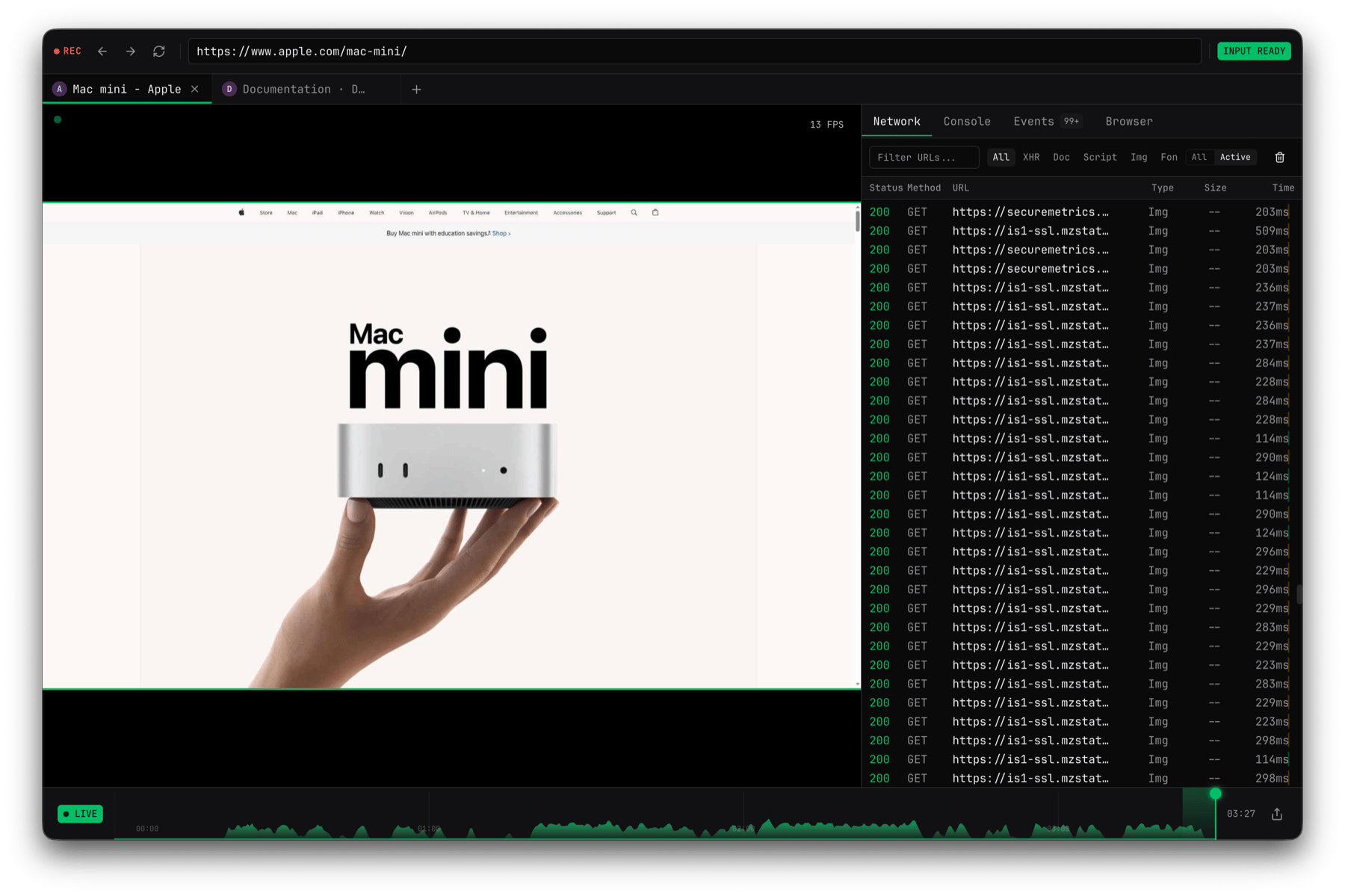
Debug UI anatomy
Use Debug UI when the live browser state matters. Share a browser moment when another person or agent needs the same page state and timestamp. Use recordings when the run has already moved on or closed. Use artifacts and downloads when the workflow produced files that another system needs to review.
What you can inspect
Live browser sessions
Open a live Debug UI and share exact browser moments with humans or agents.
Recordings
Replay what happened after the run.
Artifacts and downloads
Capture files, reports, PDFs, and evidence.
Status, events, and logs
Connect browser state and timeline evidence to application logs.
Blockers and CAPTCHA
Return clear blocker state instead of pretending success.
Typical debug loop
1
Check the result status
Start with
completed, blocked, needs_confirmation, failed, or cancelled.2
Read the step summaries
Look at page titles, URLs, observations, and errors from the browser steps.
3
Open evidence
Use Debug UI for live inspection, browser-moment sharing for handoffs, recordings for replay, and artifacts for downloaded files.
4
Tighten the workflow
Add domain policy, structured output, approvals, timeouts, or deterministic checks where the run was ambiguous.
What to keep with the job
Store enough evidence to explain the outcome without leaking credentials:- Job ID and browser ID.
- Result status.
- Final page URL and title.
- Bounded observation metadata.
- Artifact, download, file, or recording IDs.
- Redacted error
code,name, andmessage. - Blocker or CAPTCHA state when present.